# How To Redirect Domains (from www to non-www) - Google Domains
This article will walk through how to redirect domains from the [www](http://www). version to non-[www](http://www). version. In this example, we'll be using Google Domains, but you can follow a similar process with other DNS hosts.
***NOTE**:* You will still need to configure BOTH the www and non www versions in your account.
**Part 1: Setting Up the Domain**
**Step 1:** Navigate to Domains > Add New Domain.
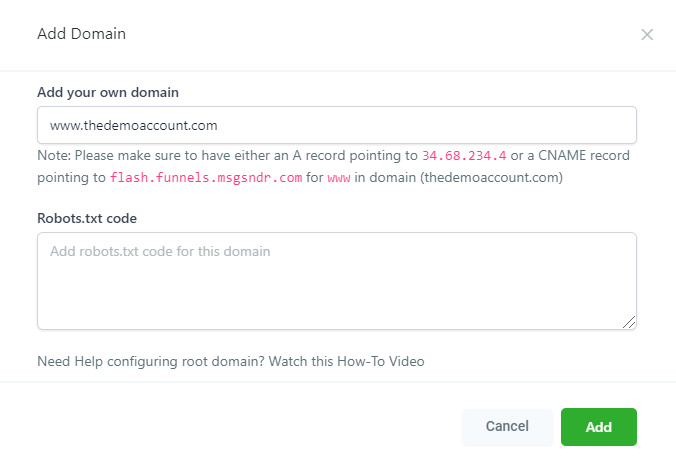
**Step 2:** Add the non-www version of the domain, such as thedemoaccount.com
**Step 3:** The pop-up window in MyPipeline will tell you what IP address the A-record or CNAME record needs to point to (***NOTE**:* don't use both, and we recommend using the CNAME).
**Step 4:** In a new web browser tab, navigate to your DNS (such as Google Domains).
**Step 5:** Navigate back to MyPipeline browser, and click the pencil icon. Choose the first page of your website/funnel. Click Save.
 
**Part 2: Setting up the Sub-domain Forwarding**
**Step 1:** Set up the subdomain forwarding to redirect [www.thedemoaccount,com](http://www.thedemoaccount,com) to the non-[www](http://www). version.
**Step 2:** Establish a permanent redirect and forwarding path, and enable the SSL. This will mean that any [www.thedemoaccount,com/calenda...](http://www.thedemoaccount,com/calendar) or [www.thedemoaccount,com/blog](http://www.thedemoaccount,com/blog) will also redirect to the non-www version.
**Step 3**: Be sure to save your changes. Click "Add" (In Google Domains) or "Save", etc. in other platforms.
**Part 3: Testing the Sub-domain Forwarding**
**Step 1:** Open a new web browser tab, and test the [www](http://www). link to ensure it redirects in the way you just setup.
---
# Agent Instructions: Querying This Documentation
If you need additional information that is not directly available in this page, you can query the documentation dynamically by asking a question.
Perform an HTTP GET request on the current page URL with the `ask` query parameter:
```
GET https://help.mypipeline.co.in/funnel-and-websites/how-to-redirect-domains-from-www-to-non-www-google-domains.md?ask=
```
The question should be specific, self-contained, and written in natural language.
The response will contain a direct answer to the question and relevant excerpts and sources from the documentation.
Use this mechanism when the answer is not explicitly present in the current page, you need clarification or additional context, or you want to retrieve related documentation sections.